About the project
I came up with this one a while back: While I wouldn't necessarily call myself pasionate about travelling [I'd love to travel more, but my bank account begs to differ...], I do certainly enjoy taking off and vanishing every time I have the opportunity to. There's something fascinating about leaving it all behind and looking forward to the unknown [Although temporary]... Or known [Talking about going for seconds, thirds, fourths...].

Back-end [API] service
The connector is based on Tequila's Kiwi's API [https://tequila.kiwi.com]. Kiwi is an online travel agency and Tequila allows you gain access to it through its API. I haven't quite explored all the different features available in this service [For free users], taking only what's strictly necessary for my personal purposes: Search for flights.

How to get access to the API?
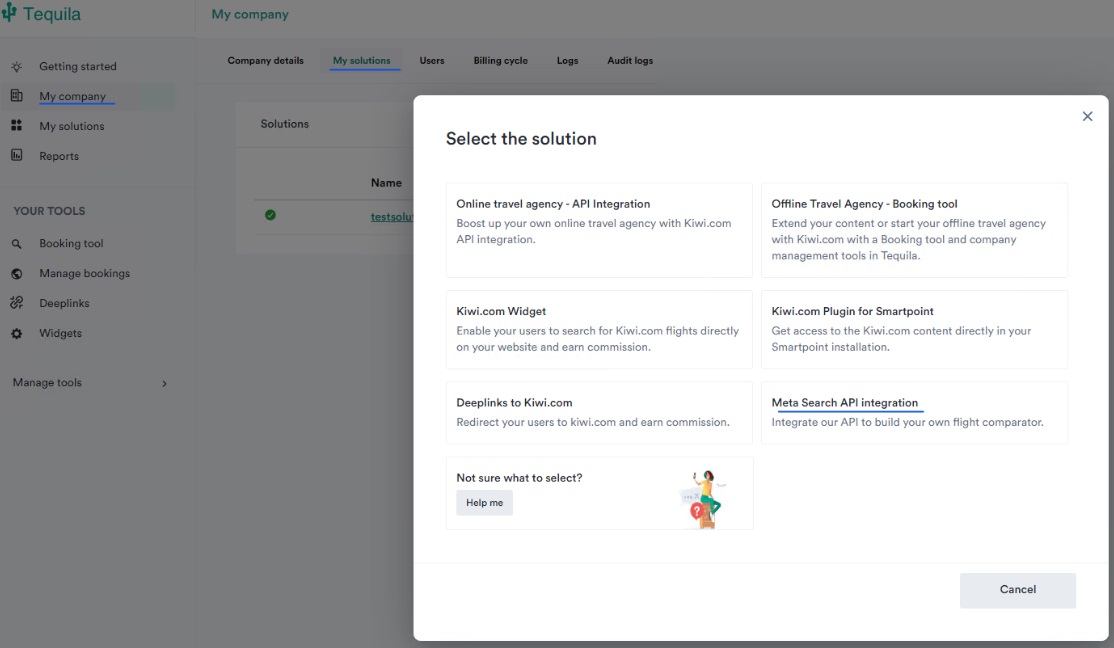
The registration should be relatively straightforward. Simply go to https://tequila.kiwi.com/portal/login/register. Once registered, log-in and go to My Company > My Solutions > Create Solution> Meta Search API integration > One way and Return. Enter the name and create the solution. This is what allows you integration with Kiwi's platform:
Once created, you will get an API key, which allows up to 100 requests per minute [Because free]:

Custom connector functionality
The connector uses Swagger 2.0 and it utilizes 2 endpoints described through the documentation here: Locations & Search. I will not delve into the different features for these two particular paths [Or the others]. What we will be focusing on, however, is in the primary capabilities of both endpoints and how I integrated their parameters in the Custom Connector for the purpose of looking into Flights.
/locations/query Path:
Before describing this path, is important we understand how the API works: When searching for Flights we can use multiple parameters [Refer to the documentation for Search] to describe a location. However, this location must be given in a specific format [IATA airport code, 3 letter city code, etc.] and that's where this endpoint is important. Among other pieces of information, it allows us to get 3 letter city codes and, since I am personally interested in looking into specific city-to-city flights, that's the value I will be using for the search. However, you can use any of the other details returned as they fit your personal needs:

This endpoint accepts 4 parameters: Location Type, Location [Or term], Locale & [Result] Limit, returning the outputs above.

/v2/search path:
Now that we have a way to get codes, off we go searching for Flights! This path contains everything you need for an exhaustive search of flights based on different criteria. However and for my personal purpose I have only included 26 out of the over 60 different properties available for you to use in the custom connector:

Again, all the documentation for these properties and how to use them is available via the official documentation here. You can go and add which other properties you need directly to the YALM file of the Custom Connector!
Importing the [Unmanaged] solution
⚠️ Download the solution parts from my Github repository in https://github.com/ederNguyen/FlightDeals-Custom-Connector-PowerApp!
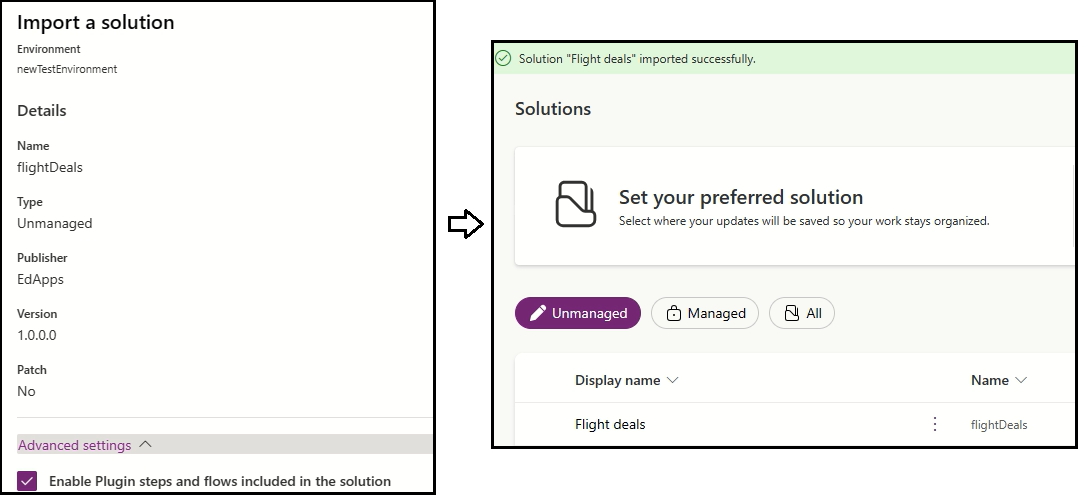
This solution is split in 2 different parts, which you can download from GitHub. If you are wondering why 2 parts this is because of a Custom Connector and connection limitation when having all resources in one solution: On import, when having Flows and other resources using the Custom Connector, you will be requested to create a connection, which is simply not possible if the Custom Connector does not exist in your environment yet. Hence, we import the Custom Connector first, after which we can map its connection to a Connection Reference. For this, you will import Part 1 [flightDeals_1_0_0_0 in repository above] of the solution as you would do with any other import:
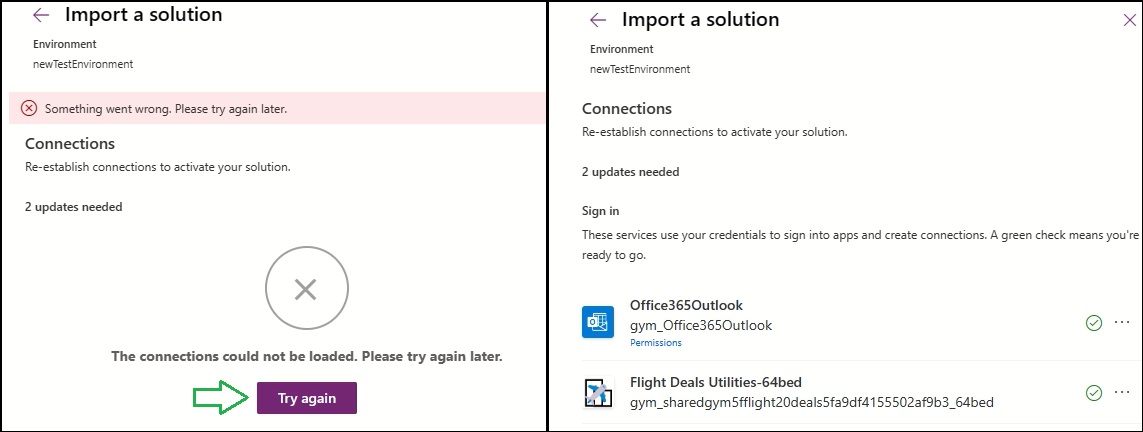
Next, import Part 2 [flightDeals_1_0_0_1]. If you come across a connections error on import, just try again. It is possible this can happen if the first part has not completely synchronized with your environment: On validating custom connector connection, if the connector does not exist, you could not possibly create a connection for it. Once connections are validated, just make sure to create them. Remember that Flight Deals will require the API Key for authentication:
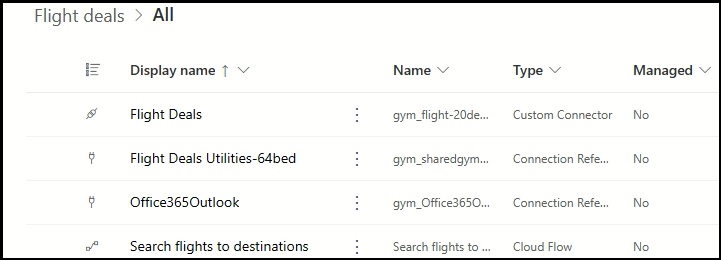
On completion you should have all resources in your solution up and running:
You will note in this solution I have also included a Flow that sends Flight notifications based on the cities I want to visit, a maximal price for the flights and the number of nights. Feel free to adjust these values per your own preferences [Using the API's manual above] or consider creating a new Flow as well:

With this, you would have a report similar to the one below on your email, with destinations, prices dates and even a link to book!

Final notes:

Note: The API may every now and again update columns. While this won't break your custom connector [It seems as it changed since I created mine], it'd be convenient to look for any new updates, some of these updates could be improvements for better results.

Happy travelling! ✈️✈️✈️✈️✈️
 Cloud Gandalf
Leave a comment